How long does your model actually take to recalculate?
3 Minute Read
Financial models get slower over time. More data, more formulas, more complexity. At some point what used to feel instant starts to feel sluggish. The problem is that “feels sluggish” is not a measurement and you can’t improve what you don’t measure.
These two macros time your model’s recalculation and give you a number in seconds. That number becomes your baseline, and when the model starts feeling slow you run them again to find out whether your instinct is right.
A note before you run these
Both macros trigger an application-level recalculation. That means every open Excel workbook recalculates, not just the one you are working in. For the most accurate result, close all other workbooks before running them. A timing that includes three other workbooks recalculating alongside your model is not a useful baseline for that model.
Calculation Modes
Excel has multiple recalculation modes:
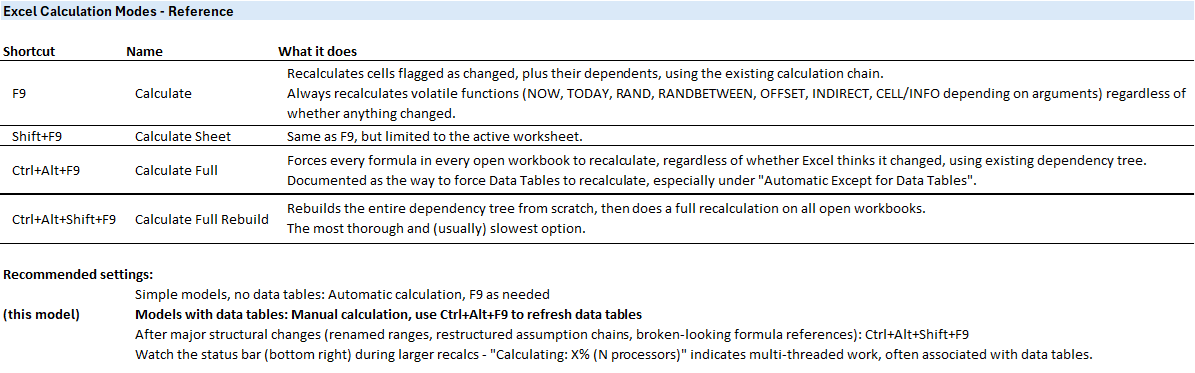
Calculate (F9) - Recalculates cells flagged as changed (dirty), plus their dependents using the existing calculation chain as well as volatile functions Now(), Rand(), Offset, Today() etc.
CalculateSheet (Shift+F9) - As above, but current sheet only.
CalculateFull (Ctrl+Alt+F9) – forces all cells to recalculate regardless of whether Excel has flagged them as dirty, cross-sheet dependencies and recalculates already mapped data tables.
CalculateFullRebuild (Ctrl+Alt+Shift+F9) – goes further, rebuilding the entire dependency tree from scratch before recalculating, catches circular dependency chain corruption, re-evaluates named ranges and their scope, and remaps data table dependencies before recalculation. This is slower, but catches cases where the dependency chain itself may have become corrupted or stale. Worth running on complex models, after significant structural changes, opening files from other systems or where formulas produce unexpected results.
Two baseline recalculation macros
For the purposes of a calculation baseline, the first two modes are not overly useful as they only recalculate part of the model.
For most purposes CalculateFull is sufficient as it recalculates everything including data tables and volatile functions, making it the standard baseline measure.
CalculateFullRebuild is slower, but gives you a more reliable picture.
Paste these into a module in a macro-enabled workbook. I keep mine in a personal macro workbook so they are available to run in any file and add them to either the Quick Access Toolbar with a clock icon for easy access or a dedicated ‘Macros’ tab in my ribbon.
'==================================================================================================
' RECALCULATION TIMER MACROS
' Times a full recalculation of all open workbooks.
' For accurate results: close all other workbooks before running.
'==================================================================================================

Sub TimeCalculateFullRebuild()
' CalculateFullRebuild is the VBA version of CTRL + Alt + SHIFT + F9 full workbook recalculation.
    Dim startTime As Double

    startTime = Timer
    Application.CalculateFullRebuild

    MsgBox "Calculate Full Rebuild (Ctrl+Alt+Shift+F9) took " & Format(Timer - startTime, "0.00") & " seconds", _
           vbInformation, "Recalculation Timer"
End Sub


Sub TimeCalculateFull()
' CalculateFull is the VBA version of CTRL + Alt + F9 full workbook recalculation.
    Dim startTime As Double

    startTime = Timer
    Application.CalculateFull

    MsgBox "Calculate Full (Ctrl+Alt+F9) took " & Format(Timer - startTime, "0.00") & " seconds", _
           vbInformation, "Recalculation Timer"
End Sub
Making it useful: the QC baseline
A one-off timing is interesting. A baseline you track over time is useful.
In the QC tab of any model I am actively working on, I add a model calculation baseline section. When the model is in a stable, known-good state I run both timers and record the results along with any useful notes:
| Check | Time | Notes |
|---|---|---|
| CalculateFull | 1.24s | Baseline v1.0, June 2026 |
| CalculateFullRebuild | 2.87s | Baseline v1.0, June 2026 |
QC Example when model is in development:

QC Example when model is live:

If the model starts feeling slow during either development or when it’s live, I run the timers again and compare against the baseline. A significant increase tells me something has changed. This is usually a formula or conditional formatting that is evaluating more than it needs to, a range reference that has expanded unexpectedly or a data table that has grown.
Without the baseline, “it feels slower” is just a feeling. With it, “it is now taking 4.2 seconds where it used to take 1.2 seconds” is something you can investigate.
Download Calculation Recommendations image to add to your model
Adding to the Quick Access Toolbar
Rather than hunting for these in the macro list each time, I add them to the Quick Access Toolbar with a clock icon so they are one click away from any workbook:
- Right-click the Quick Access Toolbar and select Customise Quick Access Toolbar
- Under Choose commands from, select Macros
- Find your two timer macros and add them
- Click Modify to change the icon – the clock faces are under the time/schedule section
Once added they appear at the top of every Excel window regardless of which workbook is open.

If your model recalculation time has doubled since you last checked, something changed. These macros help you know when to start looking.